
|
|||||
|---|---|---|---|---|---|

|
|||||
|
|
|||||
|---|---|---|---|---|---|
|
|
|||||


 Popular Articles: |
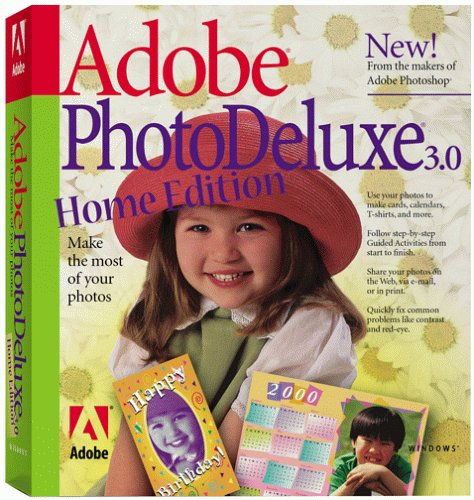
Adobe PhotoDeluxe Home Edition |
1. Open your Adobe PhotoDeluxe program. Under FILE, go to PREFERENCES and check LONG MENUS. This will give you access to the words that I have capitalized below.
2. Choose NEW under FILE. If necessary, change your measurements to PIXELS, by clicking on the arrows. A drop-down menu will appear, and you can choose PIXELS. Change it to PIXELS for both the height and width. For the width, choose 400 pixels, and for the height choose 60 pixels. Click OK. An empty banner will appear!
3.
Go to TOOLS, click on COLOR CHANGE. When it opens, click on the little box of color, and a another box with a rainbow of choices will appear. Just click anywhere in this rainbow until you get a color that you like. Click OK.
Now put your cursor anywhere in your blank banner, and click. Your banner will fill with color!
4. Now to make it fancy! Close the COLOR CHANGE, and go to EFFECTS. Click on RENDER, and then CLOUDS. Beautiful!
5. If you have a picture saved in MY PHOTOS, you can just click on FILE, then MY PHOTOS, and then SHOW MY PHOTOS. Choose your picture and drag it to your banner, by putting your cursor on it, click and hold down the left-hand mouse button, drag it to where you want it and then let go of the button.
6. Use your cursor to grab a corner, the same way as above, and drag it to change the size to fit inside your banner. Place your picture wherever you would like it -I would suggest the left hand side.

Adobe PhotoDeluxe For Dummies |
7.
Now it's time to add some text! Click on the T
immediately above your banner. A window will open that will allow you to write out your text.
Put your name - i.e. John Smith's - on the first line, click ENTER (or RETURN) and write Themestream Library on the next. To the right, choose a FONT. Under ALIGNMENT, choose the middle top choice for centered text.
8.
Choose a color for your text. Click on the color box and click anywhere in the rainbow of colors shown, to choose your color. Click OK, and your text will appear on your banner. If it looks OK, you can drag the corners to make it fit. or click in the middle to drag it into place. If no, click UNDO, and go back to T
, and try again.
9. When you are happy with it, click on SEND, then TO INTERNET, then on WEB PAGE. When you click on the first tab, TRIM, it will ask you to save it in HOLD PHOTO. Click OK. Click each tab across the top, until you get to CHOOSE.
10. If you have added a picture, save your banner as a .jpg file. If you used text only, you can save it as a .gif file, which will load faster. OK, click on your choice, and when the window opens up, write in a name for your banner, like this: mybanner.jpg. Open up the directory that you are saving your articles in and save your banner there. Click SAVE, then click on CONTINUE to save for jpg.
You are done!
• Create a Free Online Banner.
Send questions, comments, and suggestions to: catherine@borntolove.com
Born to Love articles are written by Catherine McDiarmid-Watt
Born to Love is a participant in the Amazon Services LLC Associates Program, an affiliate advertising program designed to provide a means for sites to earn advertising fees.
NOTE: All logos, company names, brands, images, trademarks and other intellectual property are the property of their respective owners.
Born to Love is a participant in the eBay Partner Network, an affiliate advertising program designed to provide a means for sites to earn advertising fees by advertising and linking to eBay.com.
Copyright © 1978 - BorntoLove.com - All Rights Reserved.
Last updated - April 5, 2024


